How to Purchase Units
Units are used to assign courses to your employees
1
Log in to your ProTrainings account and go to Buy Training Units
2
Select the course or bundle you need and enter the number of units to purchase
3
Complete checkout — units are added to your account immediately upon payment
4
Units are loaded and ready for use.
If you selected invoicing as your billing preference, units will become available once your invoice is paid.
How to Find and Pay an Invoice
Locate your invoice and complete payment to activate your units
1
Check your inbox for your invoice email from ProTrainings and click the payment link
2
Or log in to your account and go to Admin > Payments > Invoices to find it
3
Click the $ amount on the invoice to open payment
4
Once payment is confirmed, your course units activate automatically
Need a copy of your invoice for accounting? You can download a PDF version from the Billing section at any time.
How to Add Your Staff
Upload a spreadsheet or add employees one at a time
Or add employees manually
1
Log in to your ProTrainings account and go to Admin > Add Employee
2
Enter their name and email address
3
Make sure the student is assigned to the correct group if you offer more than one course.
4
The employee will receive a welcome email with login instructions automatically
Managing Your Student Roster
View, edit, and organize your enrolled employees
1
Go to Admin > Full Roster to see all enrolled employees and their current status
2
Use the search bar to find a specific employee
3
Click any employee to edit their profile, send a password reset, or change their employee group
4
To remove a user, click the red X next to their name
Manage Training Records
Stay on top of who's trained and who's due
1
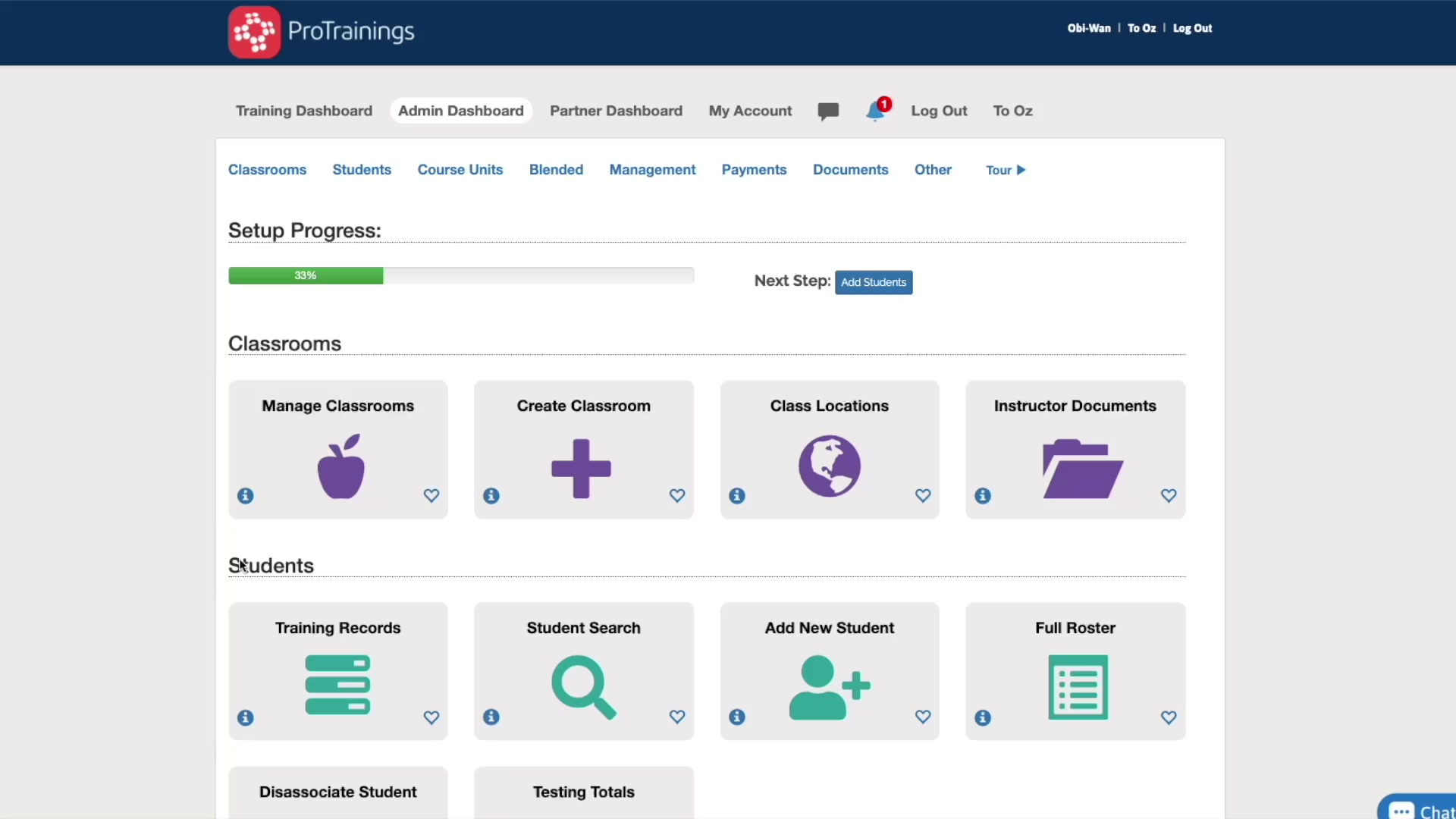
From your admin dashboard, click Training Records
2
Select the date range and any filters you want to apply
3
Click Filter then Export List to CSV to download your records
Expiration reminders are automatic — employees receive a notice 30 days before expiration and again on the day of expiration.
🏅 Certifications
1
Filter by Passed/Complete to view all completed certifications. Then click Print Certificates to get a PDF of all completed certifications.
2
Click any employee to view and download their individual certificate as a PDF
3
Use the Expiring Soon filter to find anyone expiring within the next 60 days.
4
If a student is on the roster and course units are available, they can recertify up to 60 days before expiration — no re-enrollment required.
Certificates are automatically emailed to employees upon course completion and can be downloaded any time from the admin panel for audits or compliance documentation.
How to Send Training Reminders
Keep your team on track with timely nudges
1
Go to Admin > Full Roster and find the employee you want to remind
2
Reminders can only be sent individually — click the employee's name to open their profile
3
Click Send Reminder and confirm — they'll receive an email with their login link and course assignment
After a student is registered they receive a welcome email immediately. If they do not complete training, they receive automated reminders at 7, 14, and 28 days.
How to Mark a Student Complete
Blended Accounts Only
For accounts that combine online and in-person training
1
Go to Admin > Student Skill Eval
2
Select the evaluator and date of the skills test
3
Select the checkbox next to the student's name and confirm
4
Once both the online and in-person components are complete, the certificate generates automatically
Only evaluators and admins can mark blended completions. Make sure your evaluators are set up in the account before your first in-person session.